
Environment, direction and position on your wrist
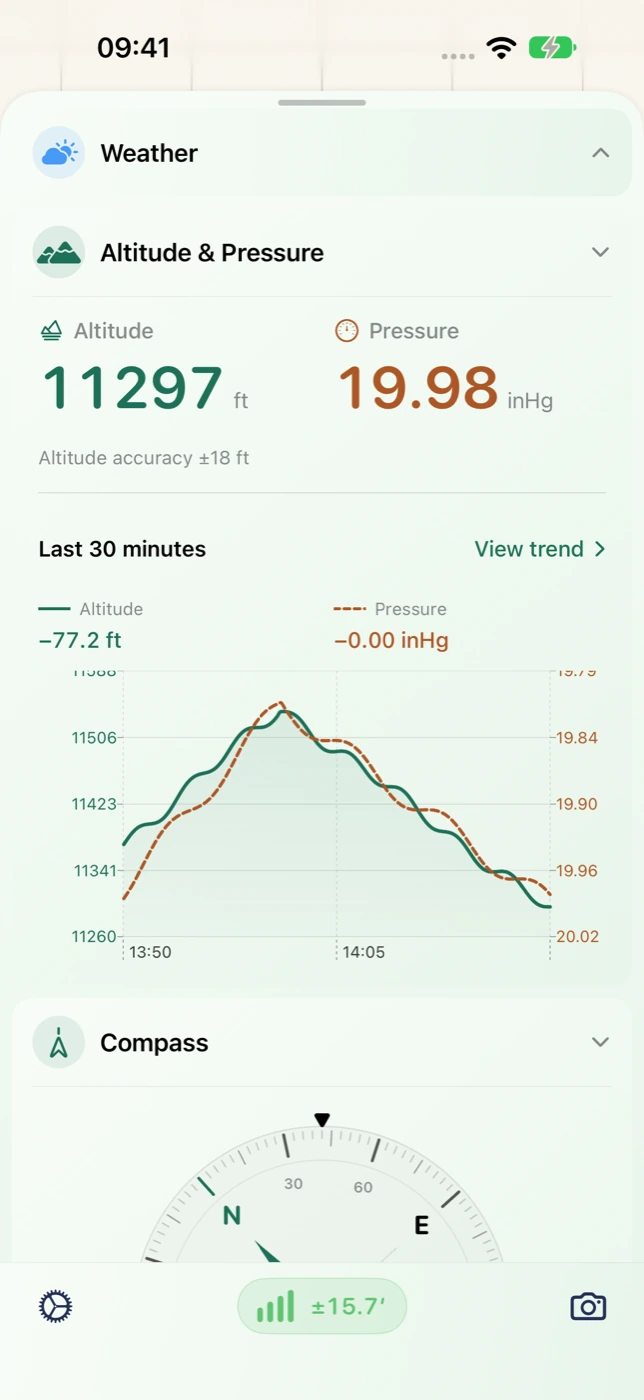
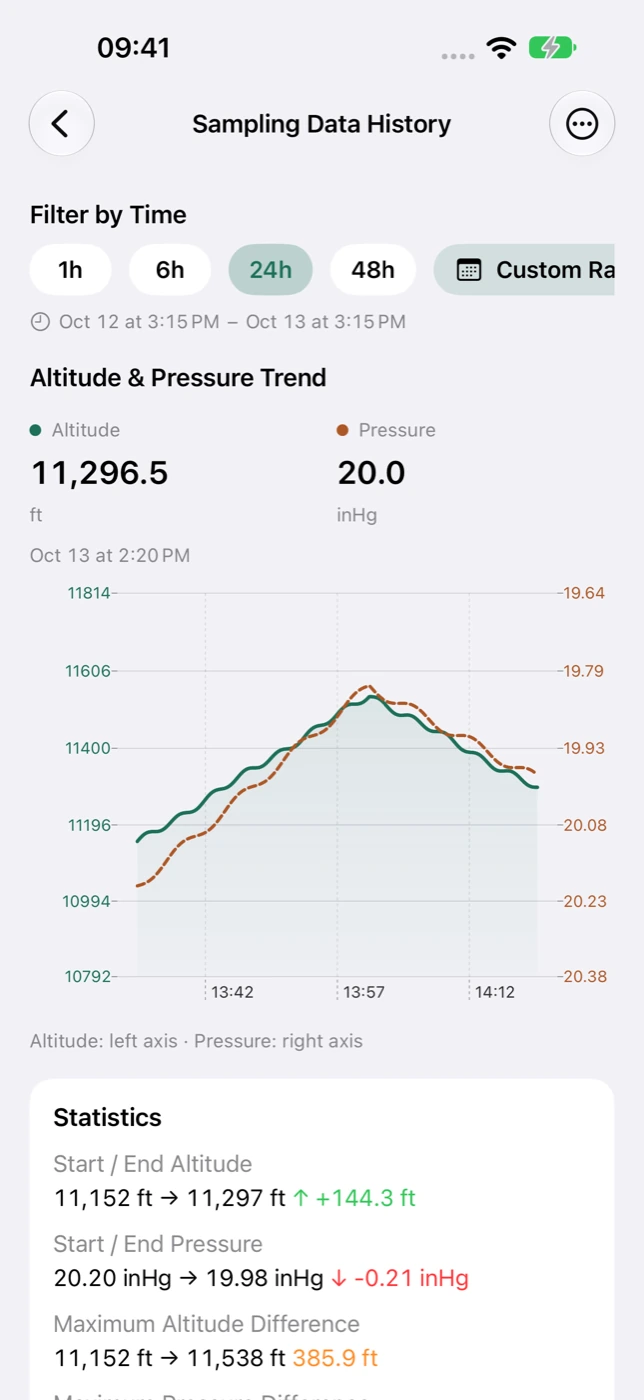
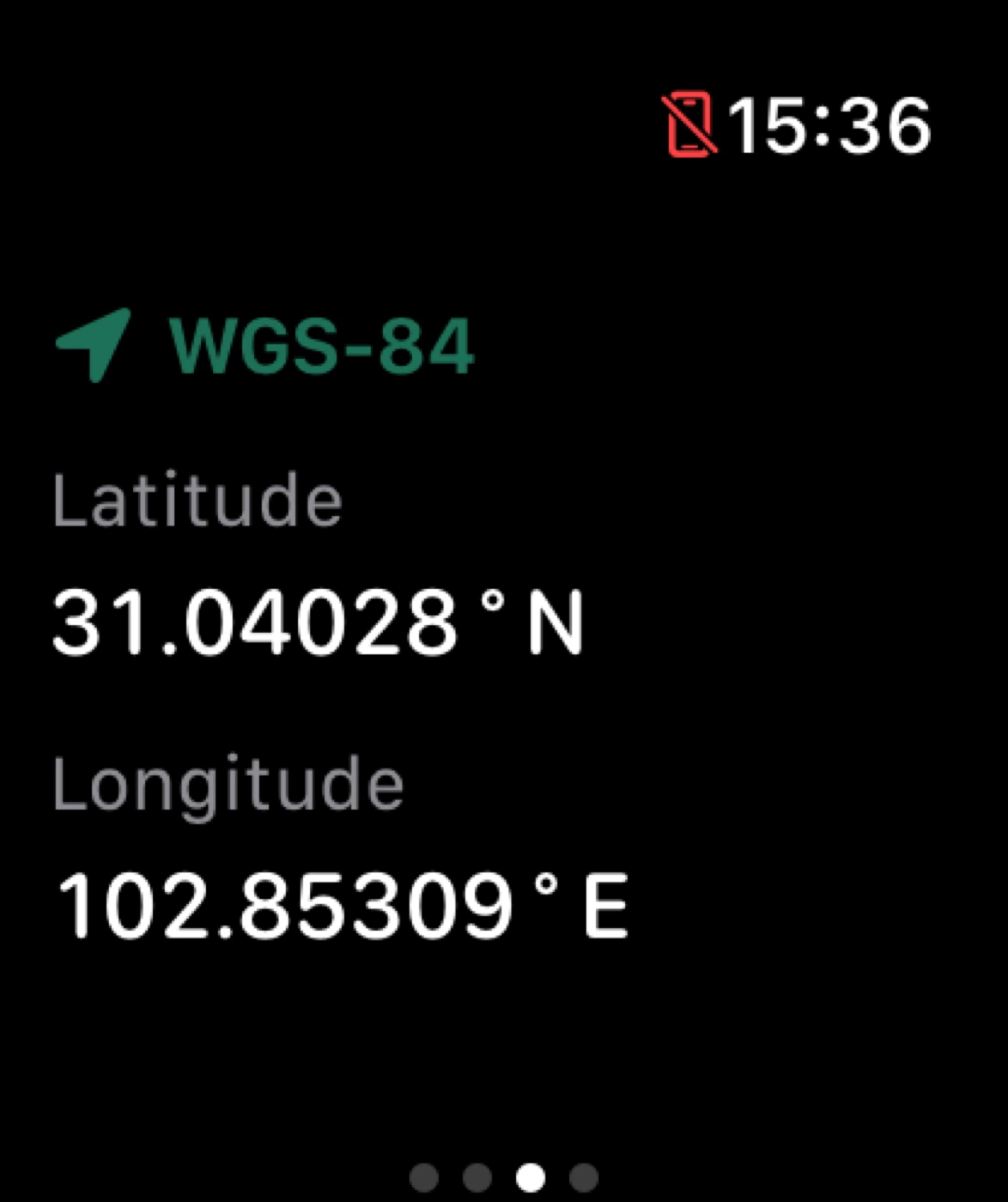
Watch pages organize available altitude, pressure, compass, speed and coordinates around environment, direction and position. Watch-face complications offer a concise entry point for a rest stop, a viewpoint or a moment when you would rather leave the phone in your pocket.
- Read the environmental information available on the device.
- Use heading and coordinates for orientation and position context.
- Connect preferences such as measurement units with the paired iPhone.
Record a trip from Apple Watch
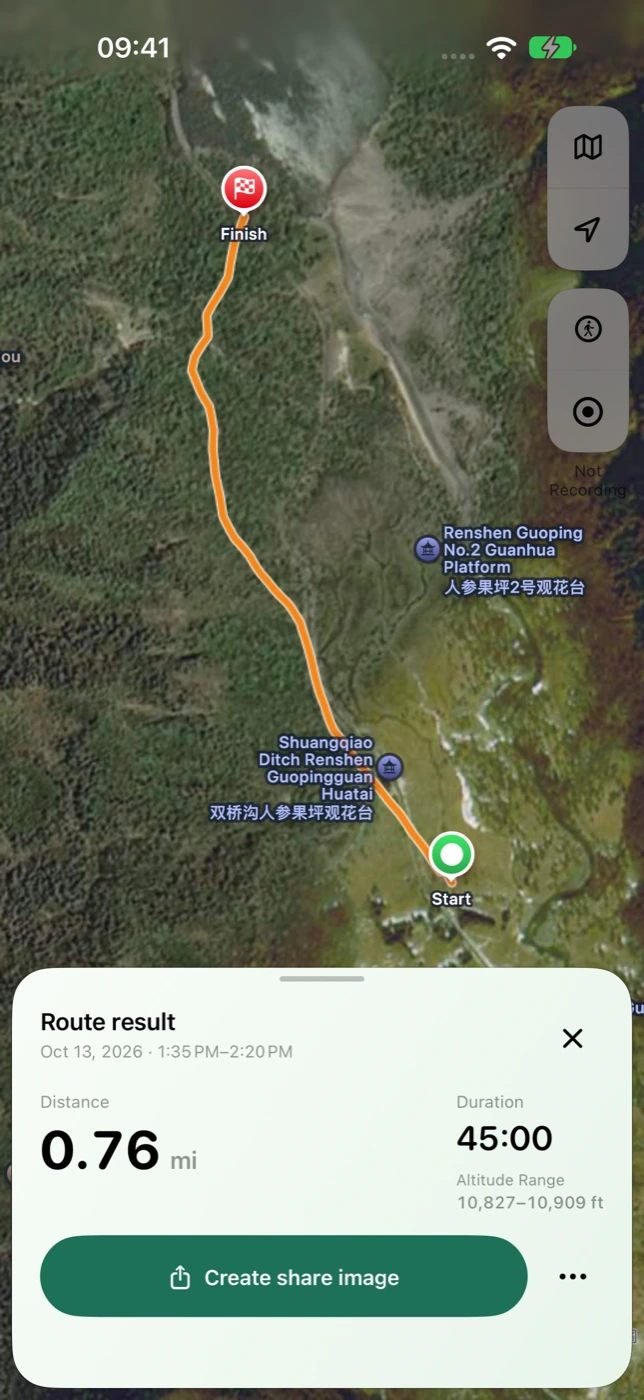
After setup and entitlement synchronization from the paired iPhone, start, pause, resume and end a trip from Watch. Recorded data can be retained on the watch and transferred when connectivity returns. Continue reviewing received trips on iPhone; final trip export waits for complete synchronization.
- Control recording from the wrist.
- Retain recorded data during a connection gap and transfer it later.
- Organize received Watch trips alongside iPhone trips.
Home Screen and Lock Screen snapshots
iPhone widgets show shared altitude, pressure, coordinates, address and observation time, with a shortcut to the map. They are useful before heading out or for a quick glance during a trip. Refreshes are scheduled by the system; use the displayed observation time rather than assuming a continuously live measurement.
Make it part of your next outing
- Open Sensnap on the paired iPhone and complete permissions and setup.
- Use Watch pages for readings, or open the trip page to record.
- Add a Sensnap widget to your iPhone Home Screen or Lock Screen.