
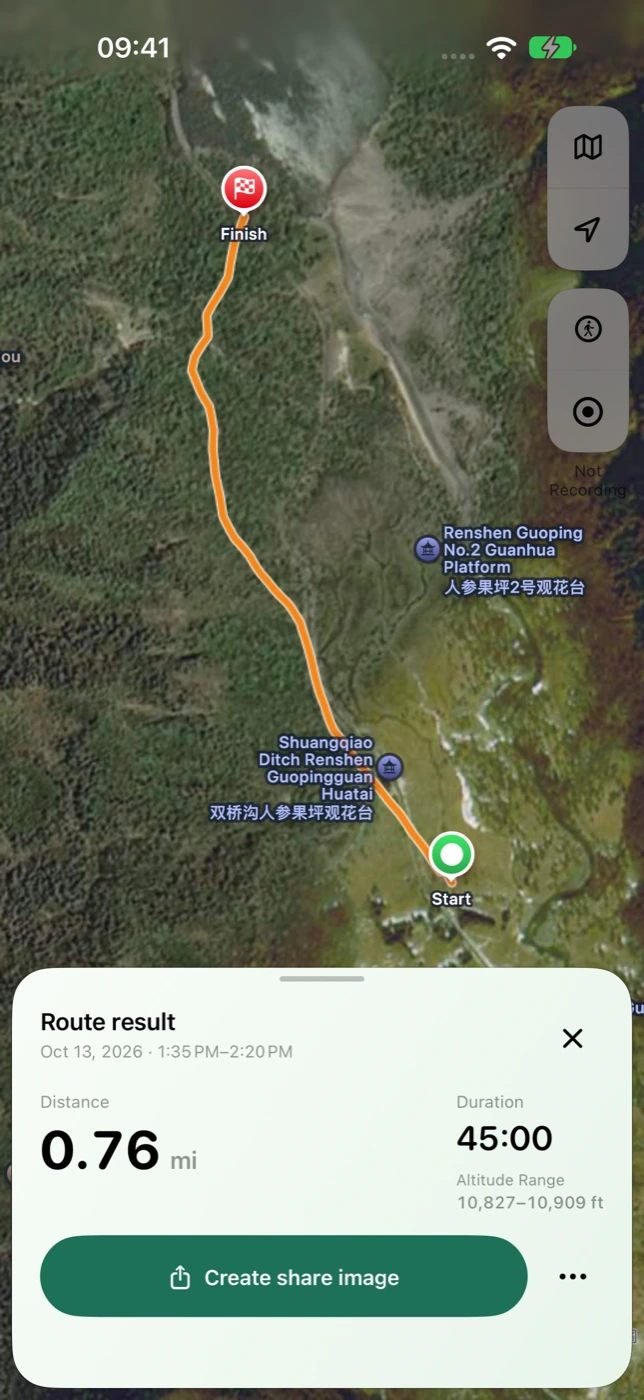
Record a trip, then revisit the route
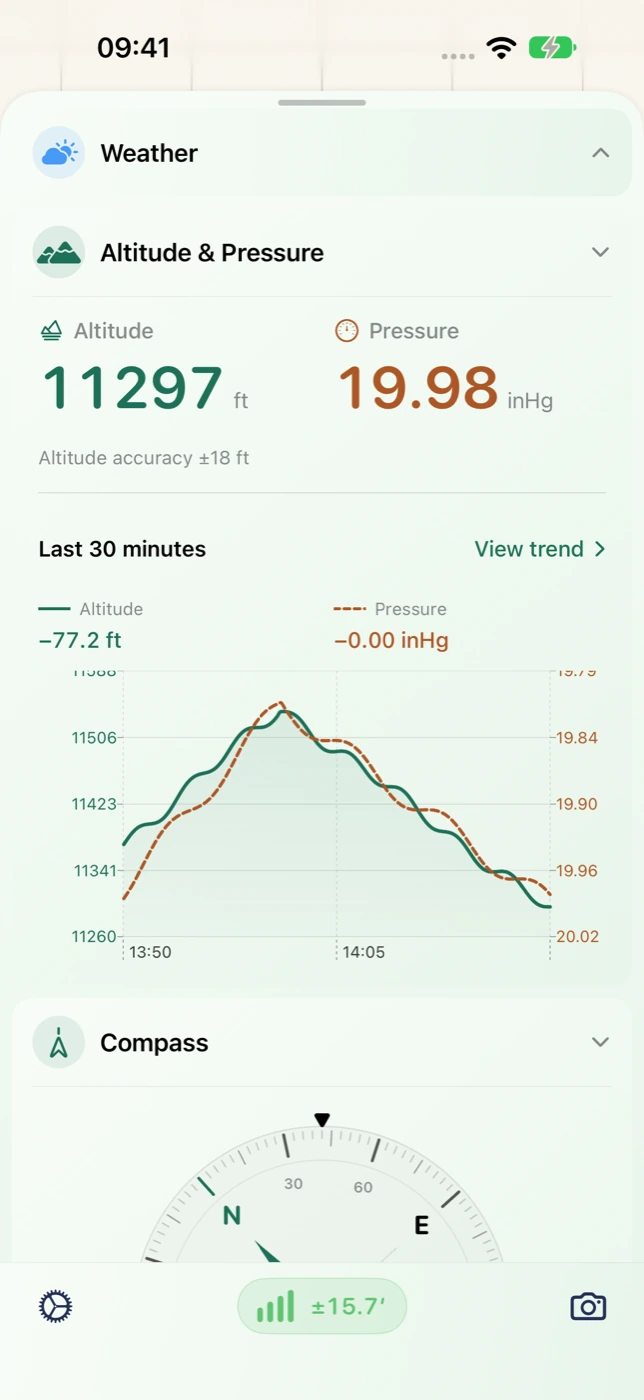
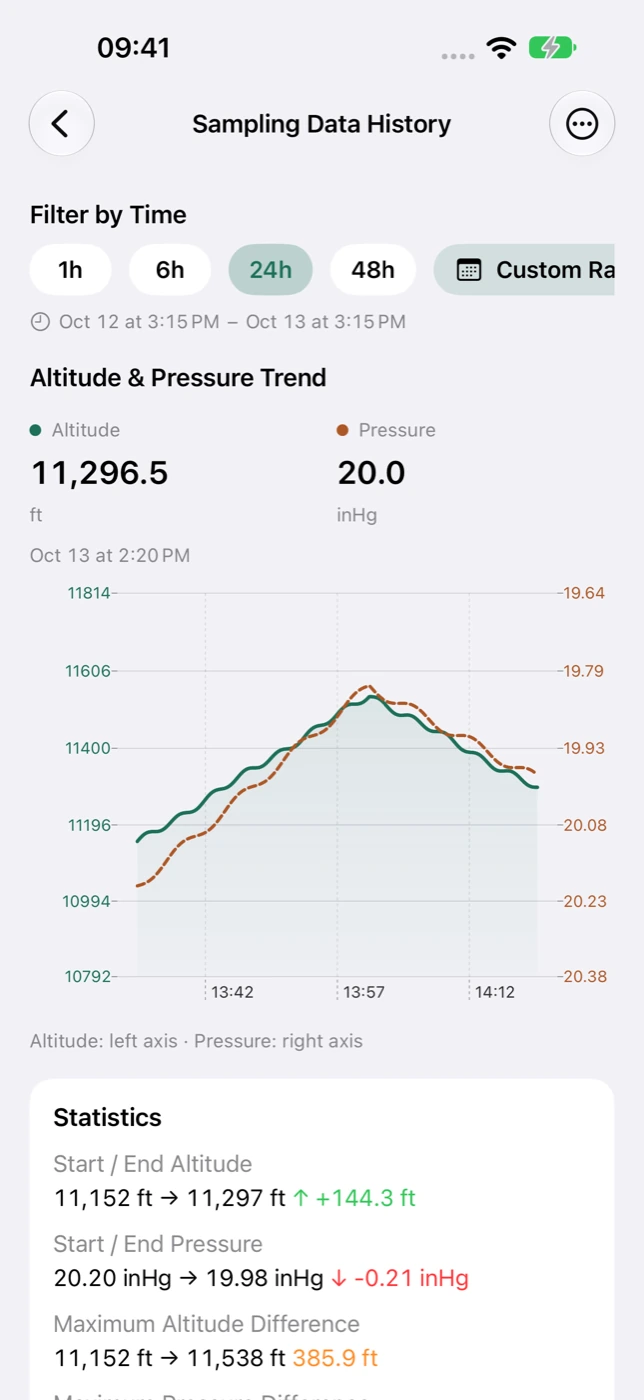
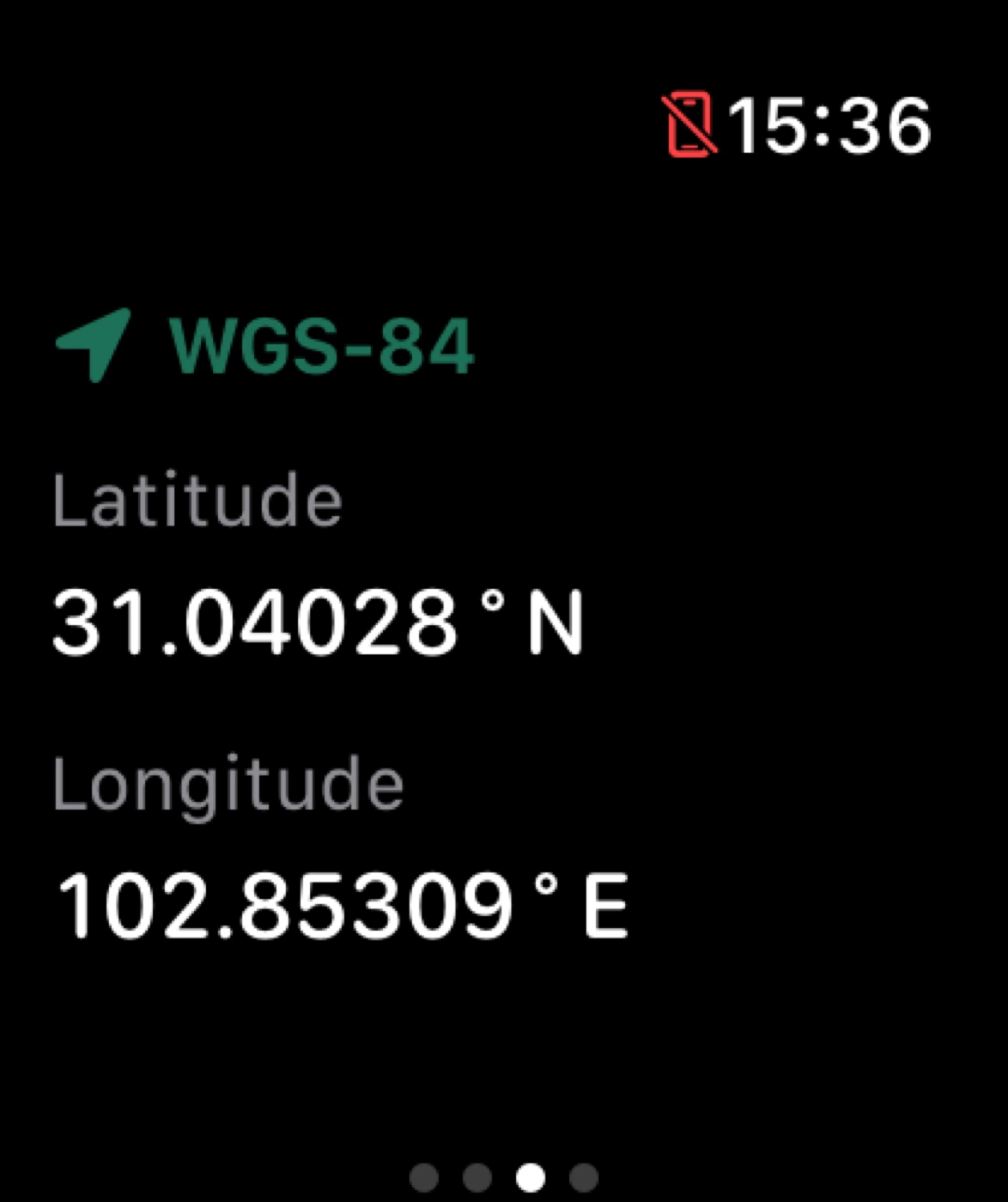
Start a trip from the map. Sensnap stores available location samples and shows the completed route and relevant statistics. Recent trips keep separate outings easy to find. Coordinates, compass heading and speed add context while you travel.
- Keep routes from hikes, city walks, bike rides and road trips.
- Review distance, duration and altitude information that actually exists in the trip.
- Location gaps are represented as appropriate breaks rather than invented travel.
Make a shareable map of your journey
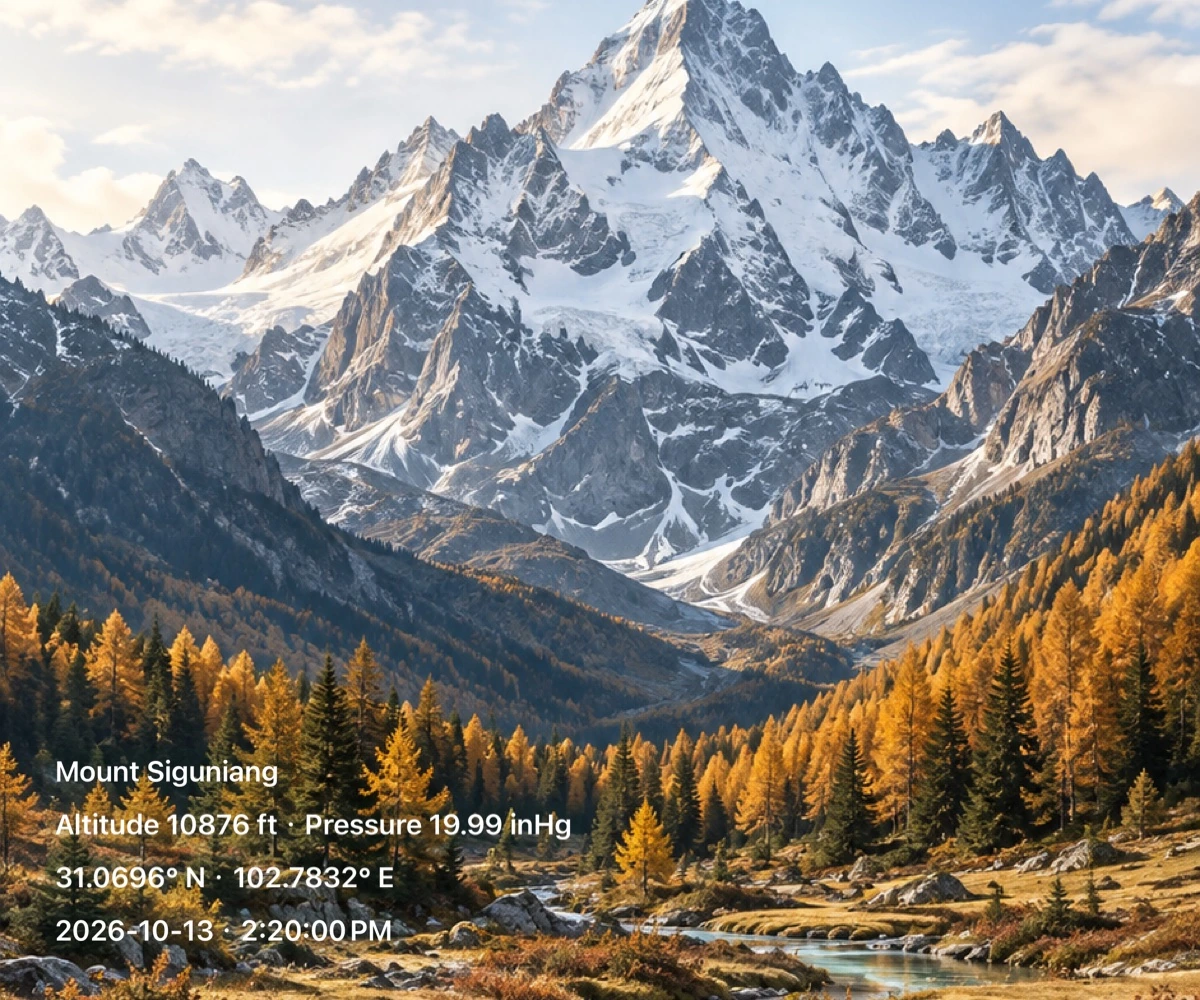
Open a completed trip in the map screenshot and watermark flow. Adjust the composition and information, then save to Photos or use the system share sheet. Trip images use the selected journey’s historical date and statistics instead of replacing them with current readings.
- Keep the route, date and trip summary together.
- Move, resize and restyle information in the photo editor.
- Use trip data export when you need structured files.
Recording is different from navigation
Sensnap records and displays routes you have traveled. It does not currently provide turn-by-turn navigation, route planning or offline map downloads. Recording depends on location access, and background location uses battery. Check permissions, battery and recording state before starting.
Make it part of your next outing
- Start an iPhone trip from the map and confirm location access.
- Finish the trip and open it in recent trips to review the route.
- Create a map screenshot, edit the watermarks, then save or share it.